
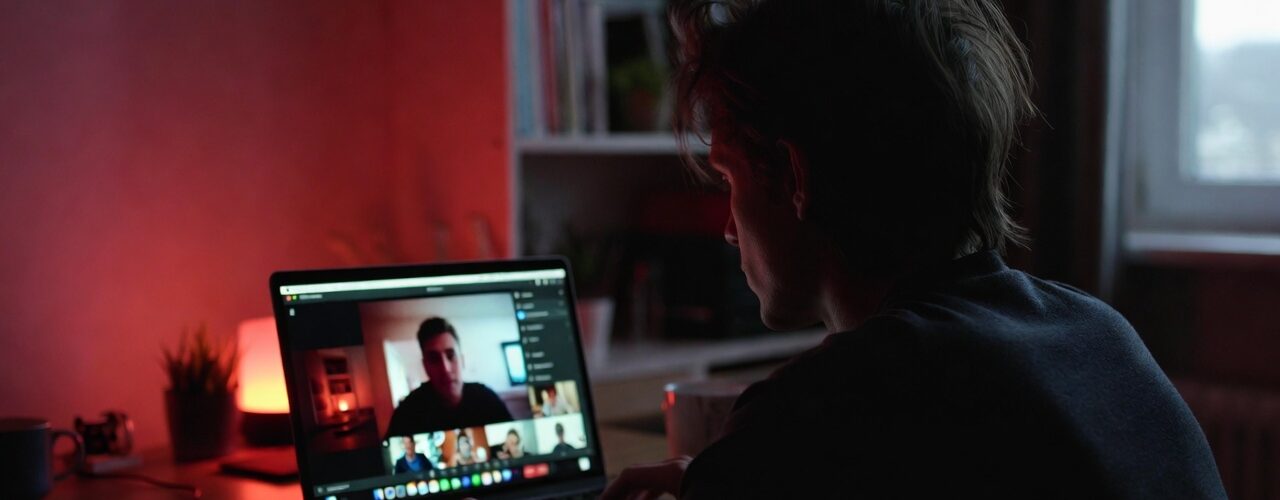
When your webcam turns on, it’s often a moment you want to be aware of—especially during video calls, screen recordings, or any app that might access the camera unexpectedly. The bash script we will go over makes that awareness physical: it watches macOS’s unified logs for camera on/off events and automatically toggles a Philips Hue light to match.This is a small automation with a big UX payoff: your environment reflects your device state, without you having to think about it.
Just do this
bash camera_watch.shAnd you should see this: Monitoring camera access…
That is all! From here if your setup is correct the moment you start your camera for a conference call or a meeting your hue light specified will turn on!
Github Repo
To get the actual files and run this locally go to THIS github repo and follow the README.
What the script does (purpose)
- Monitors macOS unified logs in real time to detect when the camera starts and stops streaming.
- Turns a Hue light ON when the camera becomes active.
- Turns the Hue light OFF when the camera becomes inactive.
- Optionally turns the light OFF on exit, so you don’t leave it on if you stop the script.
In practice, it’s a “webcam indicator light,” but better—because you can place it anywhere in the room, use any Hue bulb/fixture, and make it as noticeable (or subtle) as you want.
Why this is useful (benefits)
- Immediate, ambient awareness: You get a physical “camera is live” signal even if the app UI is minimized or on a different screen.
- Privacy + confidence: Helps you notice unexpected camera activation and reduces uncertainty (“Is my camera still on?”).
- Hands-free automation: No need to remember to toggle lights at the start/end of calls.
- Flexible setup: You can choose which Hue light to control and can override behavior via environment variables.
How it works
At a high level, the script is a loop:
- Stream macOS logs continuously.
- For each log line:
- If it indicates camera start: turn Hue on.
- If it indicates camera stop: turn Hue off.
Here are the key moving parts.
1) Safety and predictable shell behavior
The script starts with:
set -euo pipefail: fail fast on errors, undefined variables, and pipeline failures.IFS=$'\n\t': safer word-splitting defaults.
This is defensive Bash: it reduces the chance of silent failures and weird parsing bugs.
2) Configuration with sensible defaults (and easy overrides)
It defines defaults, but allows overriding via environment variables:
LOG_BIN(default /usr/bin/log): the macOS unified logging CLI.HUE_SCRIPT(default hue_camera_watch/hue_1.2.1.sh): the Hue control script it delegates to.HUE_LIGHT_TYPE(default light): passed through to the Hue script.HUE_LIGHT_ID(default 28): which Hue light to toggle.LOG_LEVEL(default info): log streaming verbosity.CLEANUP_TURN_OFF(default true): whether to force the light off when the script stops.
This design is practical: you can run the same script in different setups without editing it—just set env vars.
3) Simple logging helper
log_msg() prints timestamped messages to stderr, keeping stdout clean in case you want to pipe output:
- This is helpful if you run it under a supervisor, redirect logs, or want to keep the terminal tidy.
4) A tiny “adapter” function for Hue control
hue_state() is a wrapper that calls the Hue script like this:
/bin/bash "$HUE_SCRIPT" "$HUE_LIGHT_TYPE" "$HUE_LIGHT_ID" state on|offThis keeps camera_watch.sh focused on detection and state logic, while hue_1.2.1.sh handles the details of talking to the Hue bridge.
5) Cleanup and signal handling (don’t leave the light on)
Two traps are important:
trap 'cleanup; exit 0' INT TERM: on Ctrl+C or termination, run cleanup and exit.trap cleanup EXIT: on any normal exit path, also run cleanup.
And cleanup itself is “best effort”: it tries to turn the light off, but won’t crash the shutdown sequence if that fails.This is the kind of detail that makes a script feel trustworthy day-to-day.
6) Early validation (fail fast)
Before streaming logs, it checks:
- The log binary exists and is executable.
- The Hue script file exists.
- HUE_LIGHT_ID is numeric.
That means you get clear errors immediately rather than a script that “runs” but doesn’t actually work.
7) The core event loop: streaming logs and detecting camera events
The heart of the script is:
log stream --style syslog --level "$LOG_LEVEL" --predicate '...'It filters to:
process == "UVCAssistant"and log messages containing:kUVCExtensionEventStartStreamkUVCExtensionEventStopStream
Those messages correlate with the camera starting/stopping at the system level.Then, for each line:
- It skips header/noise lines (important to avoid false positives at startup).
- If it sees a StartStream event:
- If the script currently thinks the camera is inactive, it flips internal state and turns the Hue light on.
- If it sees a StopStream event:
- If the script currently thinks the camera is active, it flips internal state and turns the Hue light off.
That internal state (CAMERA_ACTIVE) is a simple but important detail: it prevents repeated “on” commands if multiple start log lines appear, and avoids spamming the Hue bridge.
Customizing it (common tweaks)
Because configuration is environment-driven, you can do things like:
- Pick a different light:
- Set
HUE_LIGHT_IDto your bulb’s ID.
- Use a different Hue control script:
- Set
HUE_SCRIPT=/path/to/your_hue_script.sh
- Keep the light as-is when you stop the script:
- Set
CLEANUP_TURN_OFF=false
- Adjust verbosity:
- Set
LOG_LEVEL=debug(or keep info)
Practical notes and limitations
- macOS-specific: it relies on the unified logging system and the UVCAssistant process behavior.
- Event accuracy depends on logs: if Apple changes log messages/process names in future macOS versions, the predicate may need updating.
- Requires Hue connectivity: if the bridge is unreachable, the script may fail when sending commands (it’s intentionally strict overall).




Add comment